
New platform guide

Guiding you through the new Nucleus Platform
We’ve created some useful information to support you in familiarising yourself with the new Nucleus Platform.
If you currently work with a financial adviser or investment manager, please speak to them about any action needed as a result of your upgrade. We value your relationship with your adviser and are working closely with them to ensure this is as smooth a process as possible.
Logging in to the new Nucleus Platform
If you currently access James Hay Online:
Log into it as usual at jameshay.co.uk/portal using your existing login details.
You’ll then be guided through the process to register for the new Nucleus Platform.
Please note, your username will be displayed on screen when you register. Keep a note of this as you’ll need it to access your account. You’ll also get a reminder email and letter in the post with your username, once you register. Your adviser can also retrieve your username and reset your password through the Nucleus platform.
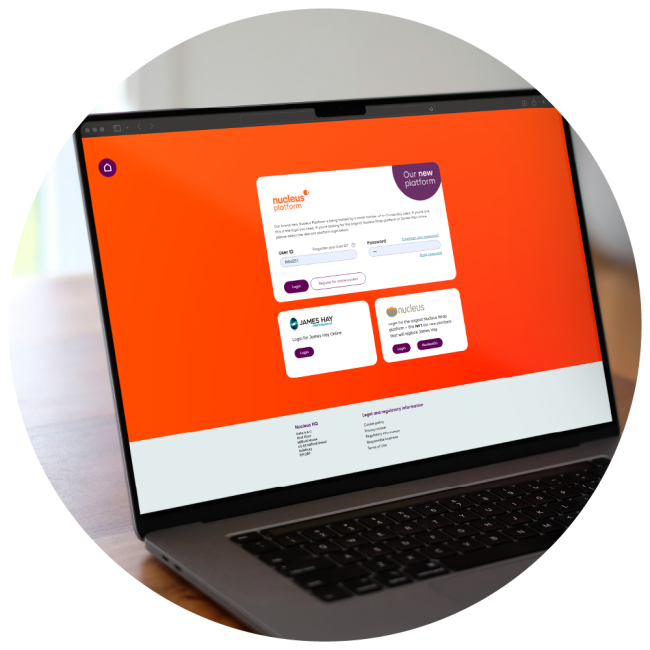
If you don’t currently have access to James Hay Online:
- Visit platform.nucleusfinancial.com and select Register for online access.
- Then select; If this is your first time registering for customer portal access.
- Enter your details, then select Register.
- If your details match our records, an account activation letter will be sent to your address.
Once you receive this letter, return to the new Nucleus Platform registration page and select; I’ve started the registration process and received a code to complete my registration. You’ll be guided through the process from there.
Please note, during the registration process you’ll be prompted to enter a password. Your username will be displayed on screen at this time. Please keep a note of this as you’ll need it to access your account. You’ll get a reminder email and letter with your username in the post, once you register. Your adviser can also retrieve your username and reset your password through the Nucleus platform.
Forgotten password
If you’ve forgotten your password, you can follow the steps below to get you into your account:
- Select the ‘Forgotten your password?’ link on the login screen
- Enter your username and select ‘Next’
- You’ll receive an email containing a link to reset your password – select the link
- A new window will open where you can confirm your new password
- You’ll be sent a one-time password to your email address
- Enter the one-time password on the screen
- You'll then see a message confirming your password has been successfully updated and prompting you to move to the login page.
Expired password
If your password has expired, you can follow the steps below to reset your password to get you into your account:
- After you’ve tried to log in using your existing details, you’ll be prompted to reset your password
- Enter your old password and then your new password
- You'll then see a message confirming your password has been successfully updated and prompting you to move to the login page.
Platform overview
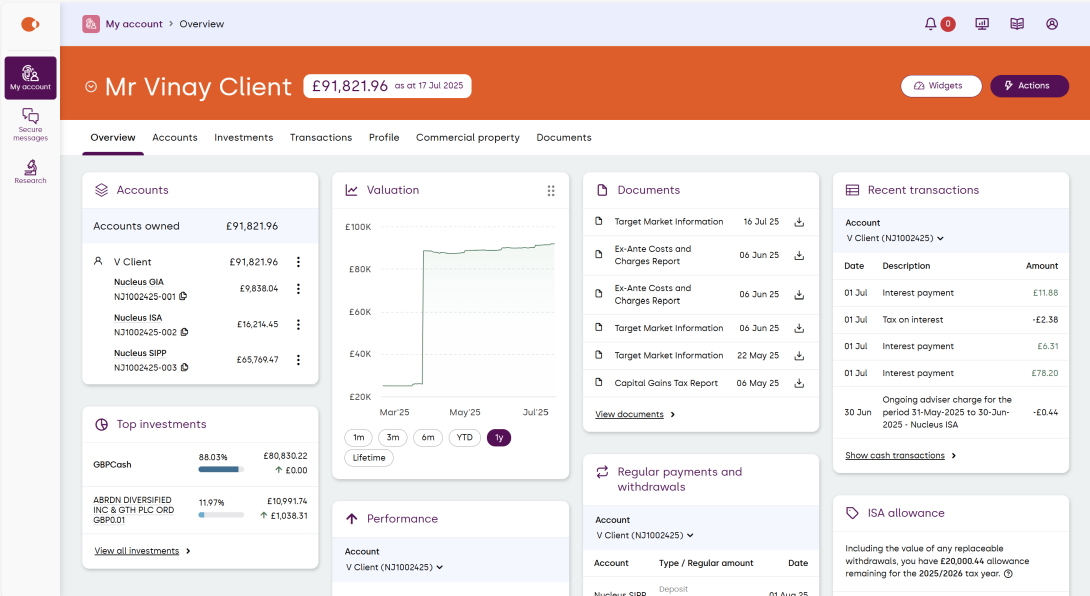
When you login you’ll be directed to your account overview with fully customisable widgets. From here you’ll be able to view everything about your account and take actions, such as make payments and view documents.
Using the icons at the top right you can:
- view your notifications
- check the service status of the platform
- access our literature library
- make changes to your profile
Below is an example of what you can see in your account overview.
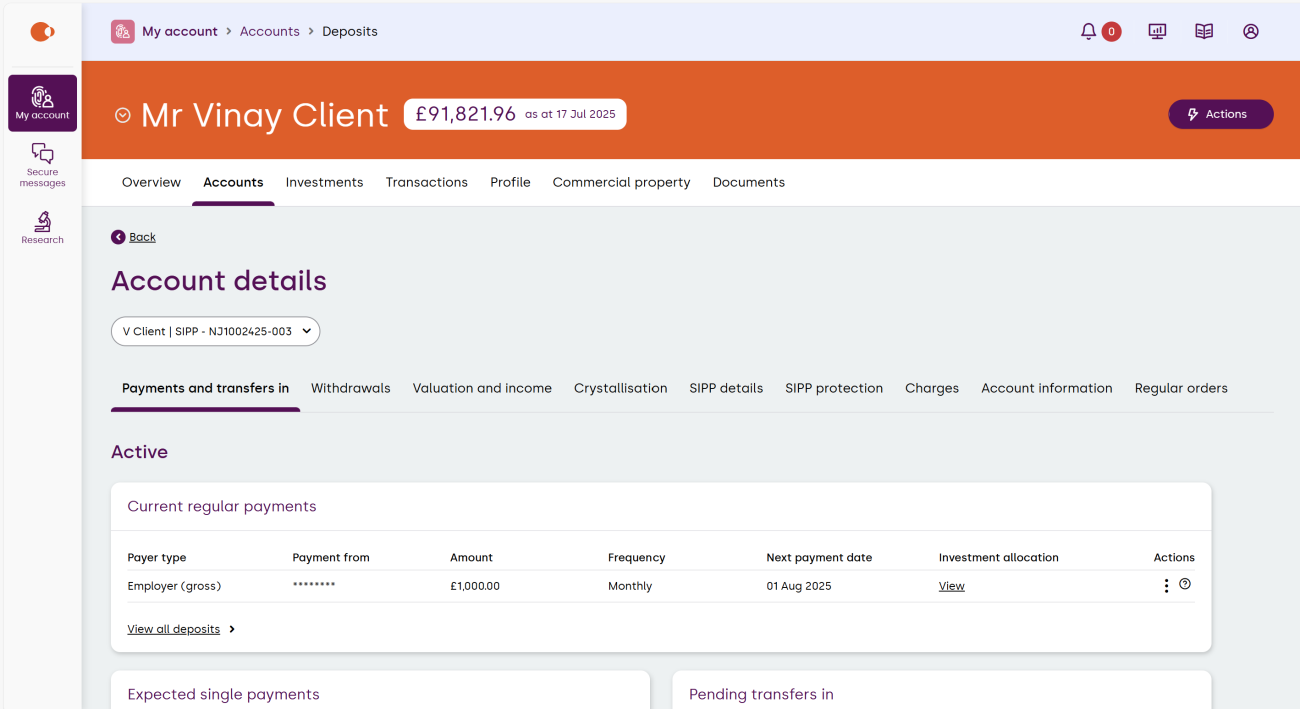
Accounts
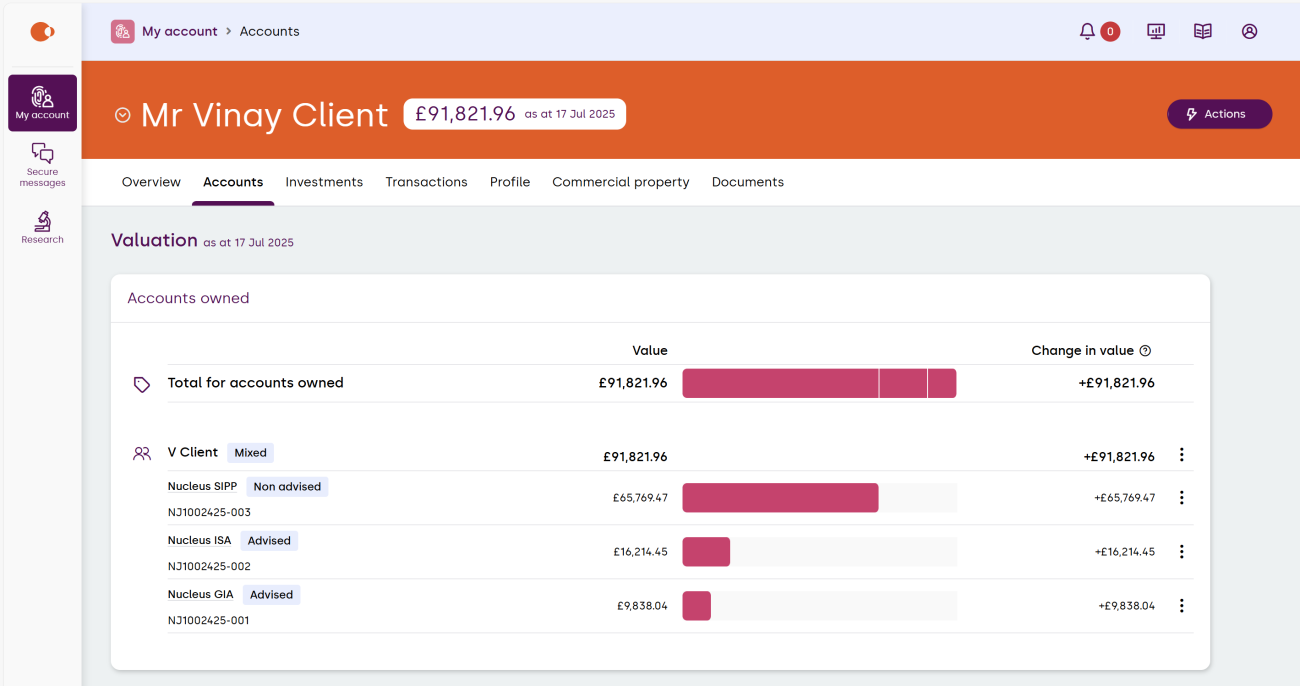
Here you’ll be able to see the valuation of the accounts that you own, as well as any linked accounts. Selecting the product will give you further account details.
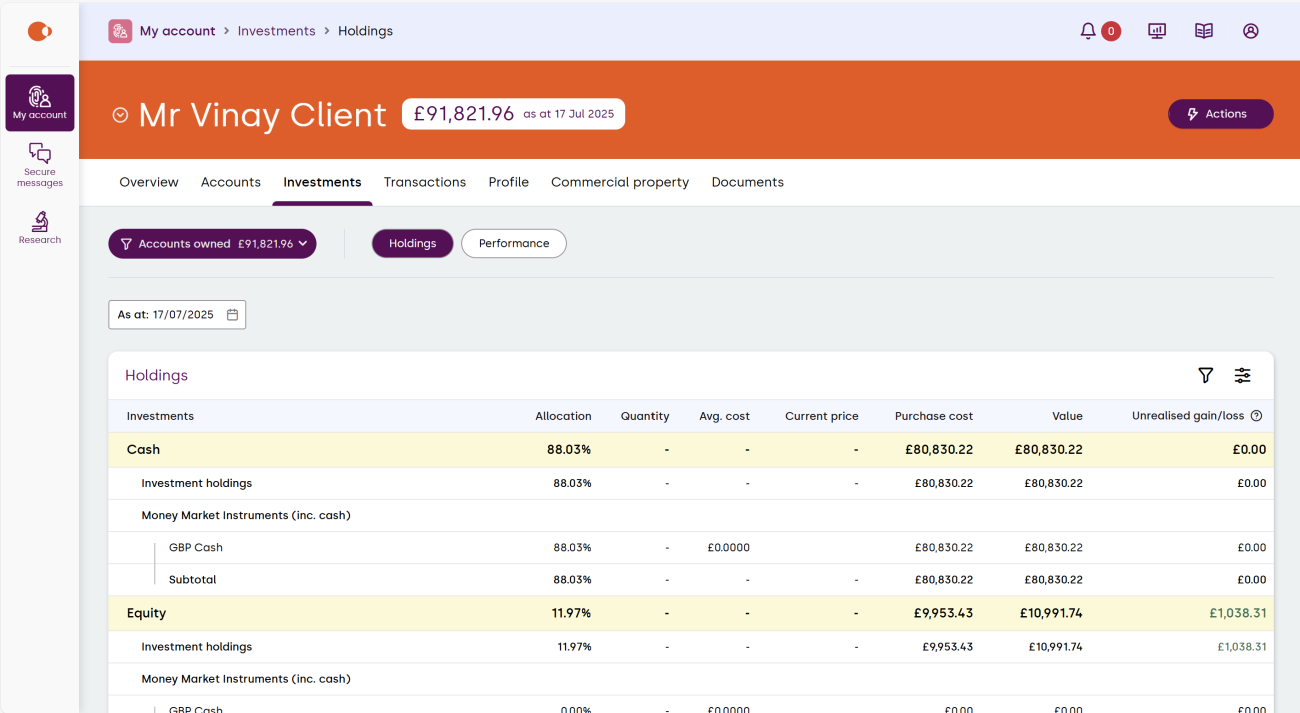
Investments
The Investments tab will show you your holdings and performance.
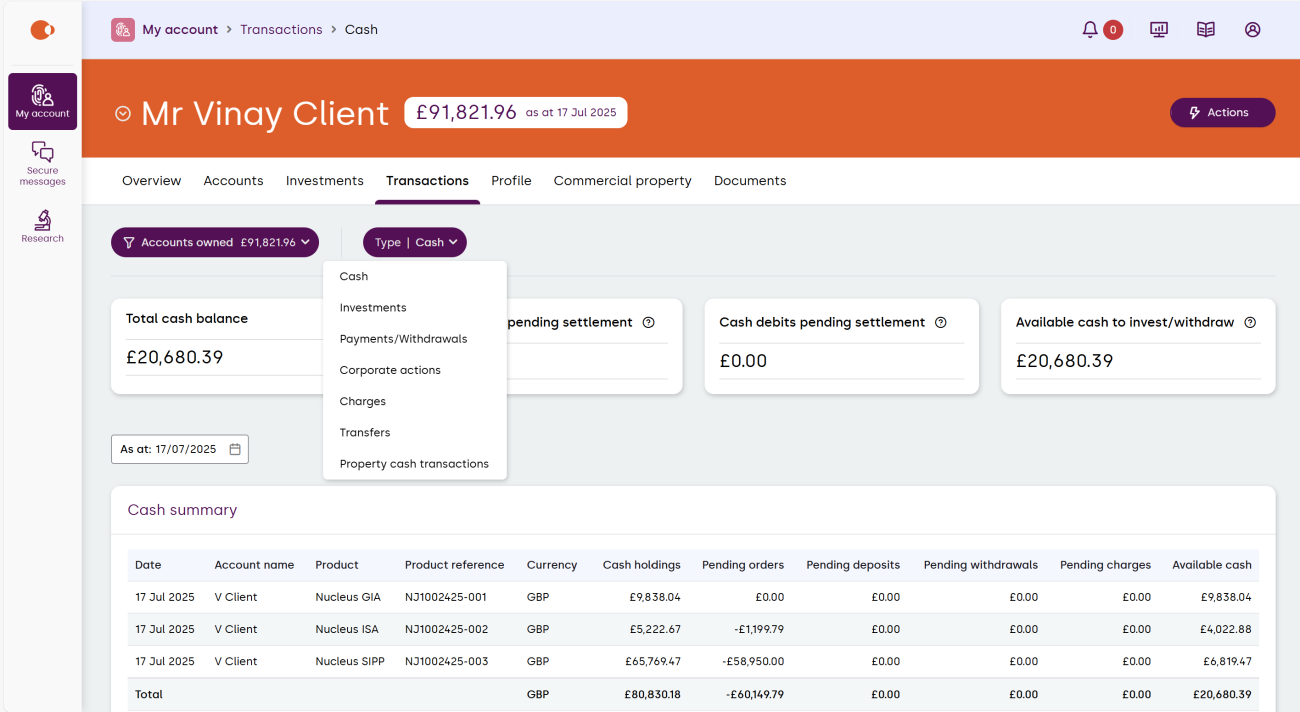
Transactions
You’ll be able to view all the transactions related to your account. The type of transaction can be changed from the drop down.
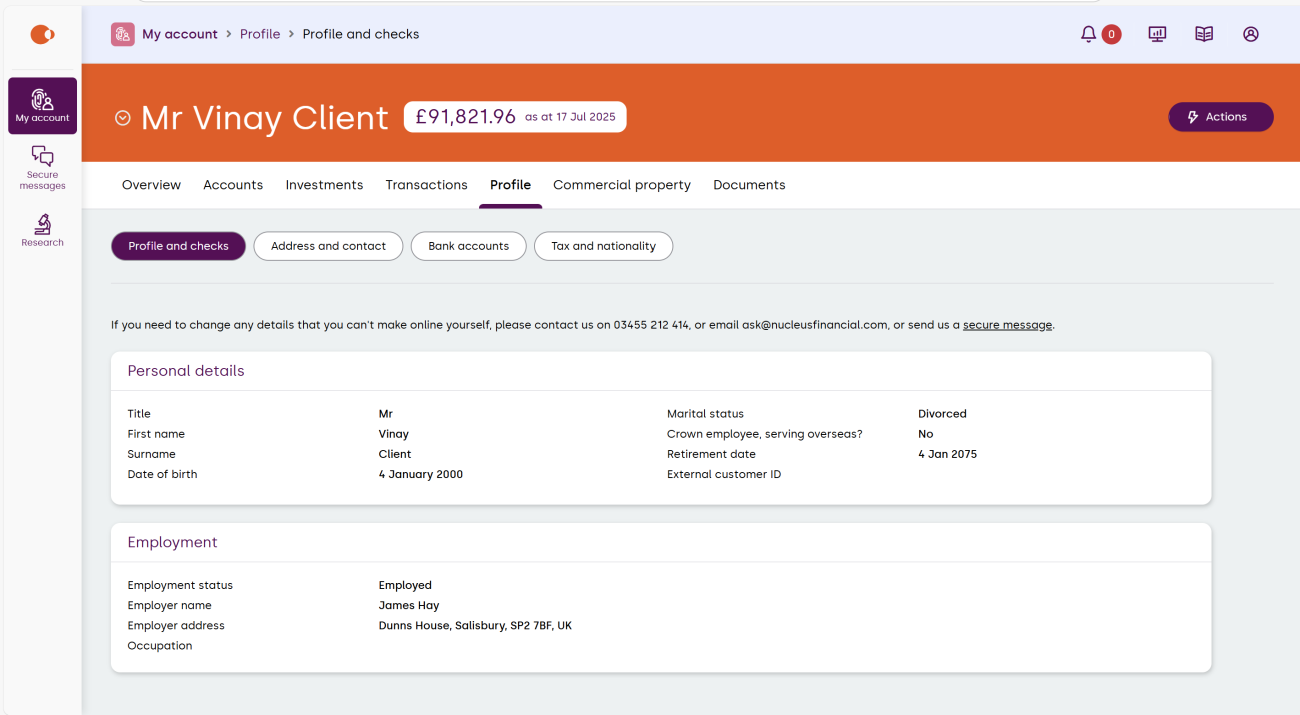
Profile
Here you can view and update a variety of your information, such as personal details, tax status and bank accounts.
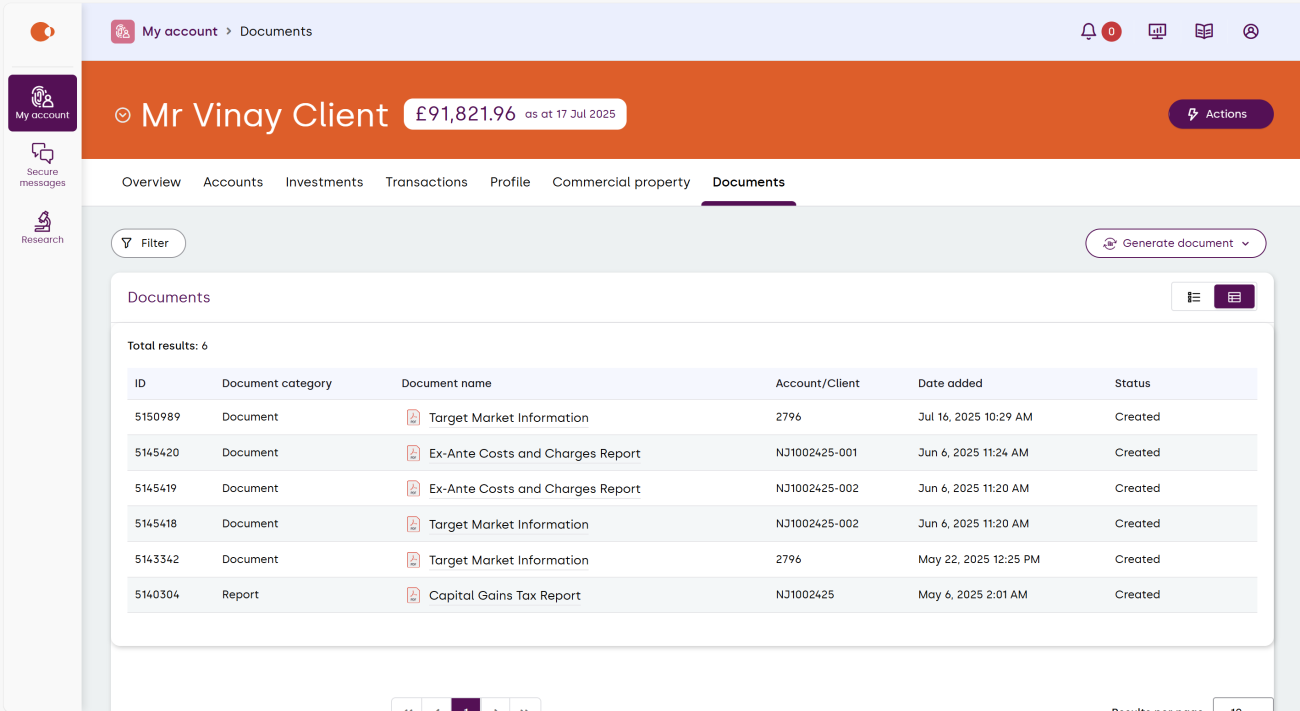
Documents
The documents tab will allow you to view and download all documents associated with your account(s), with ability to filter by date and account.
Profile
From your user profile you can update your password, email address and mobile number.
Update your password
- Enter your current password
- Enter your new password
- Confirm your new password
- Select ‘Update’
Update your email address
- Enter your current password
- Enter your new email address
- Confirm your new email address
- Select ‘Update’
Update your mobile number
- Enter your current password
- Select the country code for your mobile number
- Enter your new mobile number
- Select ‘Update’
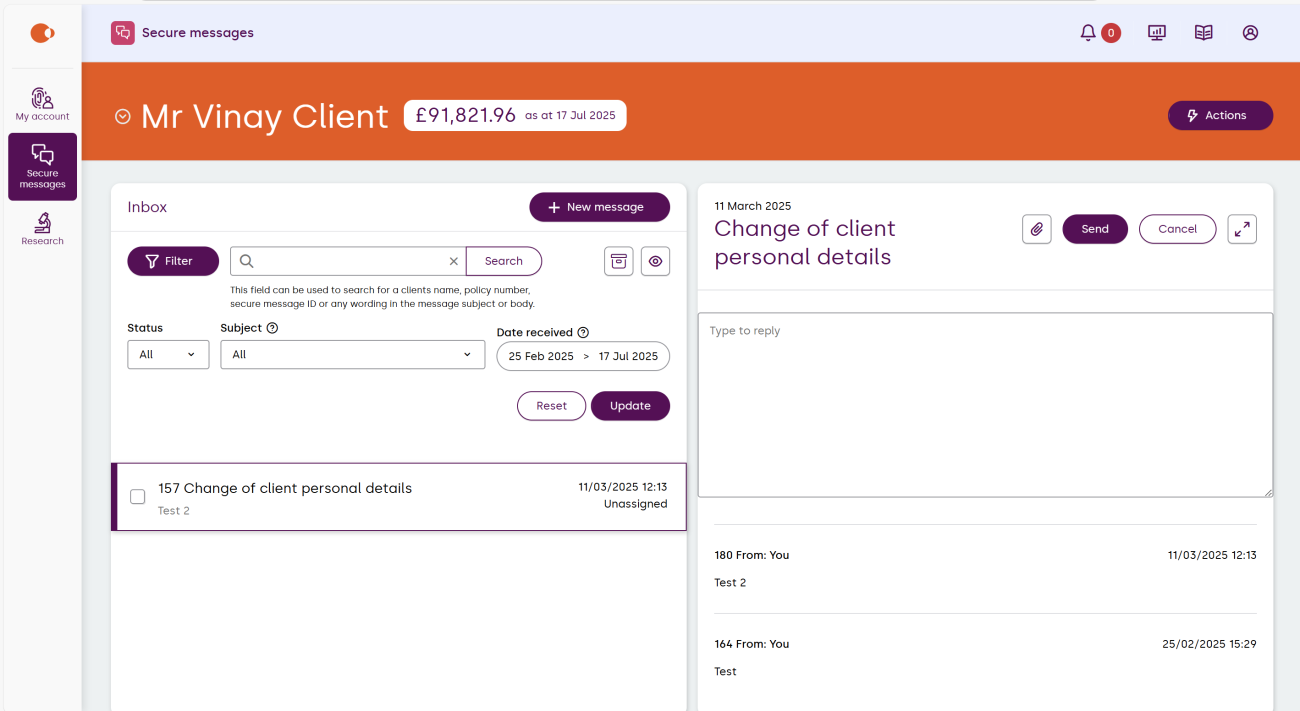
Secure messaging
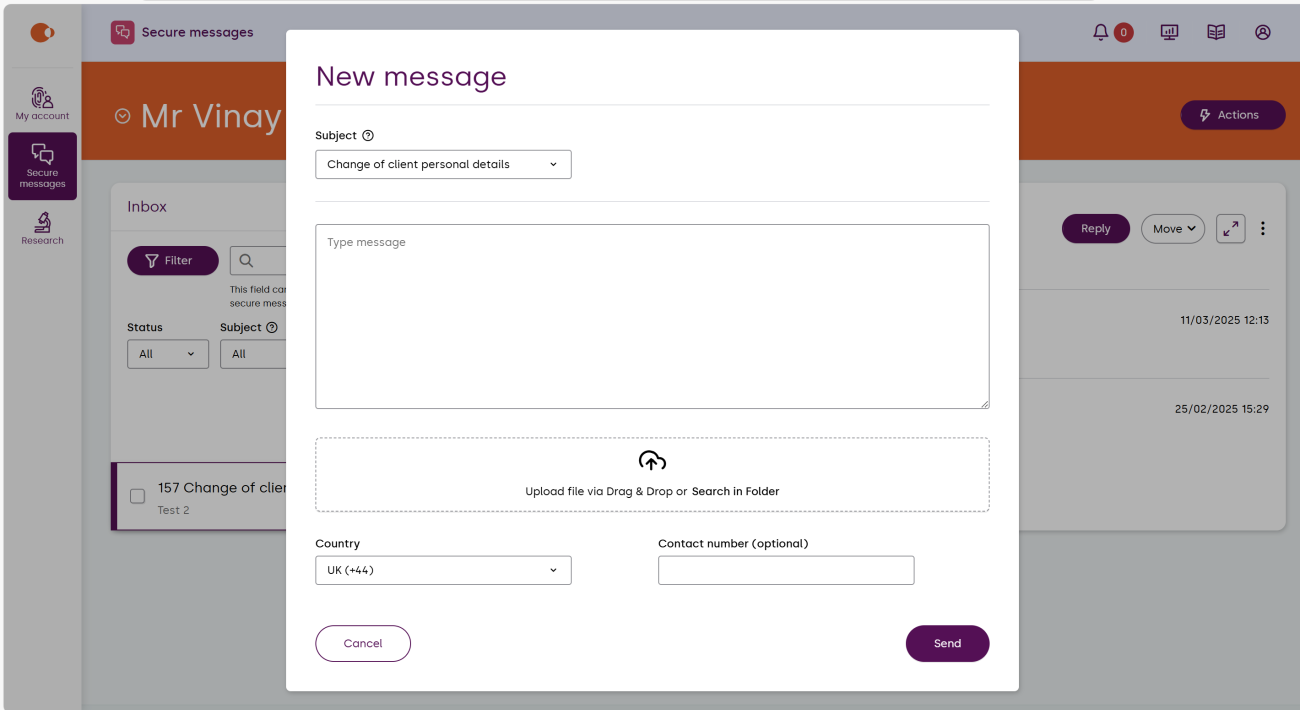
Selecting the secure messages app will take you to your inbox. You can:
- filter by read or unread messages or by a specific subject
- choose to view messages between a particular date range
- select ‘New Message’ to begin a new message, enter the information requested, then select ‘Send’.
Research
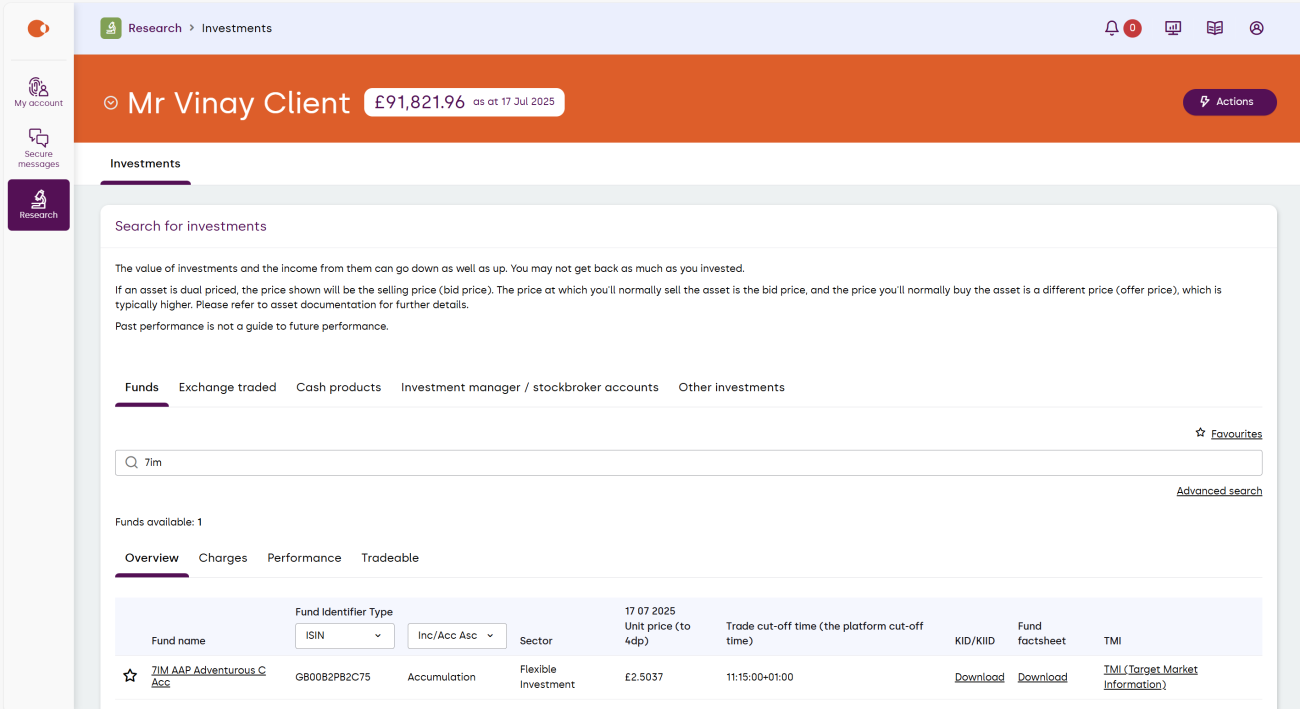
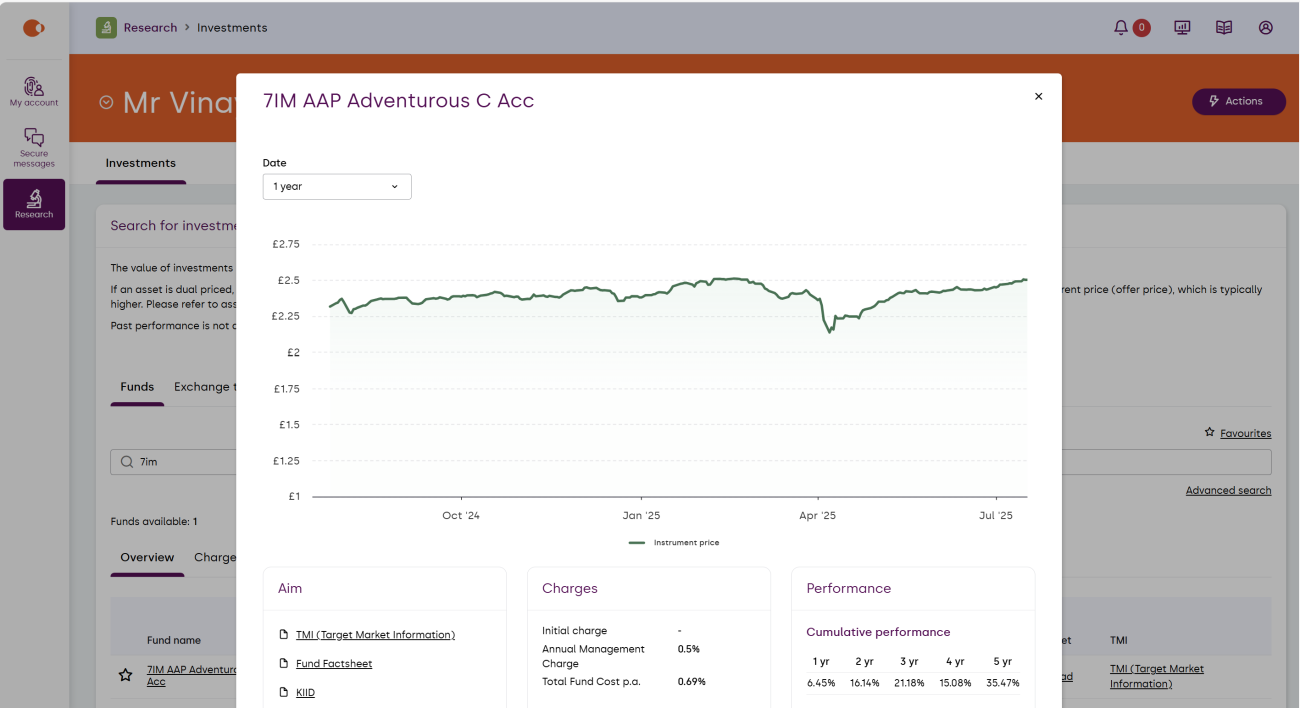
The research application enables you to search for investment information for funds, Exchange Traded Instruments (ETIs), cash products, Investment manager / stockbroker accounts and other investments.
You can view/download the ‘Key Information Document (KID)’ / ‘Key Investor Information Document (KIID)’, ‘Fund factsheet’ and the ‘Target Market Information (TMI)’ for each investment. For additional information, such as charges and performance details, select the fund name.
The ‘Charges’, ‘Performance’ and ‘Tradable’ tabs will provide more investment information and confirm which products the asset is open to for trading.
Illustrations
Learn how to illustrate for a new product.
How to create a new Illustration
1. In this example, the ISA product is used to complete the illustration.
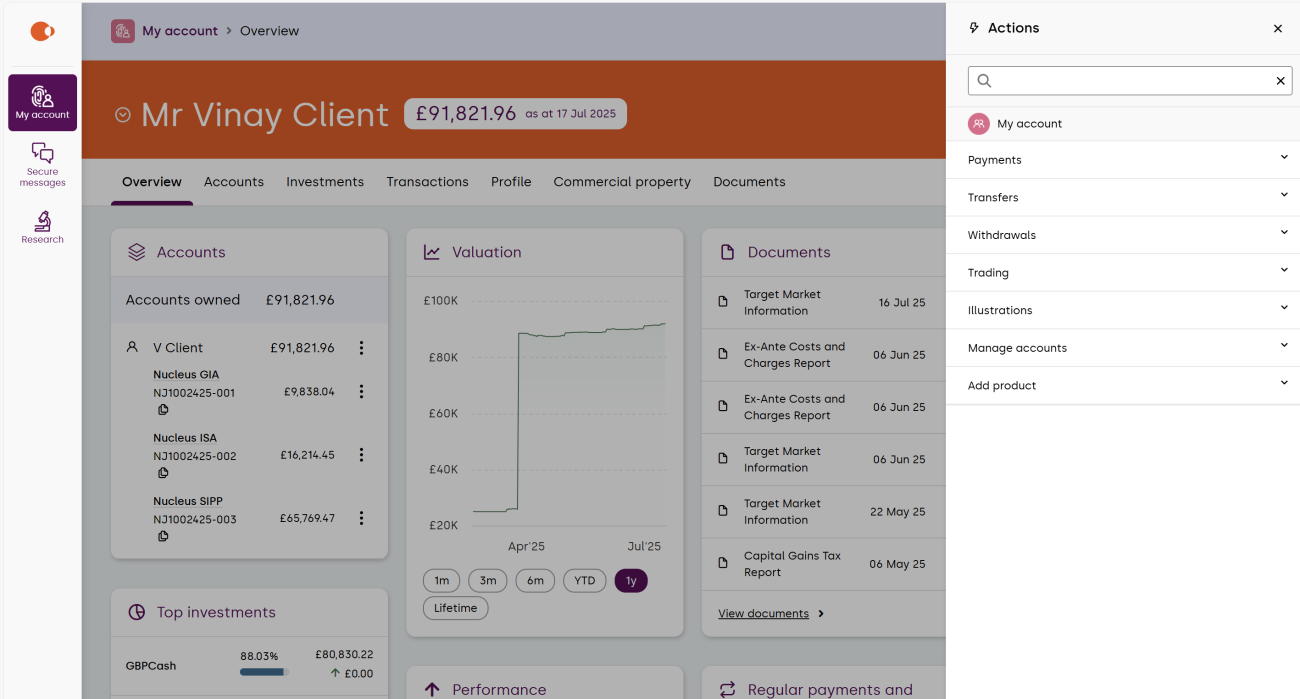
At the overview page, select ‘Actions’ on the right-hand side.
Select ‘Illustrations’, then ‘New Illustration’.

2. If you’d like an illustration for a new product under an existing account, select the account then confirm your selection by selecting ‘New product illustration under existing head account’.

3. Tick ‘Standard Nucleus Platform products’ and then select the product.
Confirm if you wish to take regular withdrawals, and if this a transfer from a matured Child Trust Fund.
Add a reference to easily find the Illustration in the document tab on your overview page.

4. Confirm if you want to make a single payment and the amount.
Complete all details if regular payments will be made.

5. If you will be making a transfer confirm ‘Yes’.
Search for the ‘Transferring scheme’ or add manually.
Complete all details.
You can add more transfers if required.

6. Your remaining ISA allowance will be automatically calculated here.

7. Select if you want to redirect charges from the ISA. You can choose to redirect certain charges from other products to your GIA. If you decide to do this, the following charges (where applicable) will be redirected - adviser charges, Discretionary Investment Manager (DIM) charges and/or Nucleus Platform charges.

8. Search for the fund in the ‘Investment selection’ search bar.
Then specify the percentage allocation for each fund and/or cash. Ensure the total adds up to 100%.
Finally, select ‘Next: Illustration ready’.

9. Your Illustration is now ready to be downloaded via the link. Or you can find a copy back in the overview page under the ‘Document’ tab.

10. You have the option to copy the illustration, create a new one, start the new business application, or return to your overview page by selecting ‘Back to dashboard’.


How to create a no change Illustration
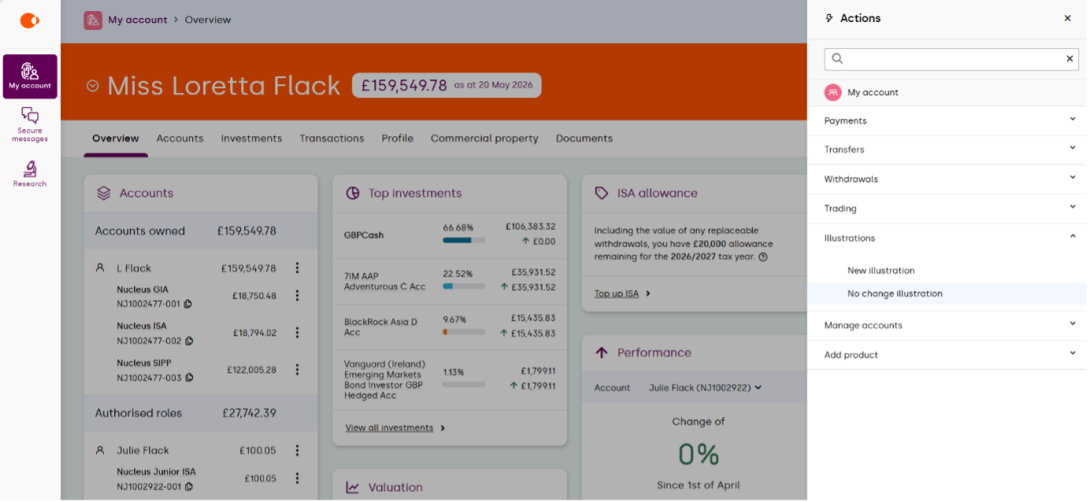
1. To create a no change Illustration. From your overview page, select ‘Actions’ on the righthand side.

2. Then select ‘Illustrations’ and ‘No change illustration.
3. Select the account for which you wish to create the illustration.

4. Then select the product within the account.

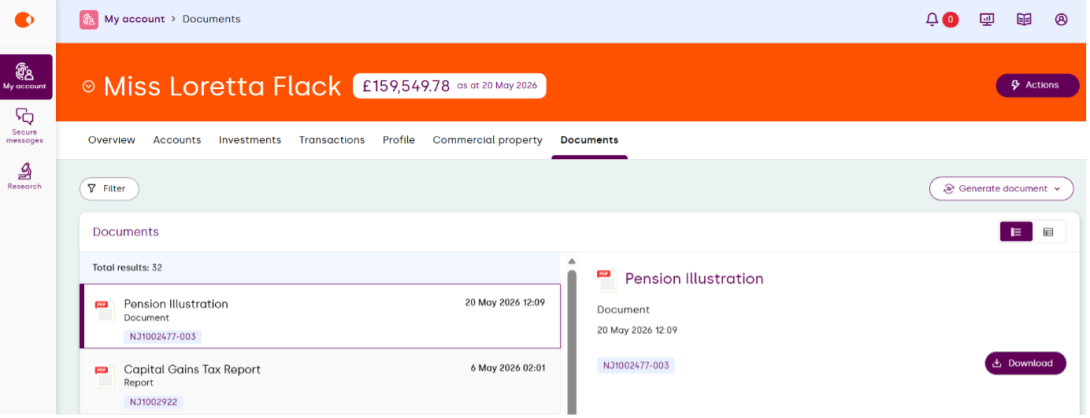
5. Your Illustration will be generated and then stored in the document library.
Click ‘Ok’ and return to the overview page.

6. Your generated Illustration will be stored in the ‘Documents’ tab.
Add a product
Understand how to add an ISA, SIPP, GIA, Junior ISA and Junior SIPP.


Payments
Find out how to make a single or regular payment or transfer.


Trading
Find out how to manage your investments from buying and selling to performing a Bed and ISA:
- How to place a buy
- How to edit or cancel a buy
- How to place a sell
- How to action a switch
- How to perform a Bed and ISA
How to place a buy
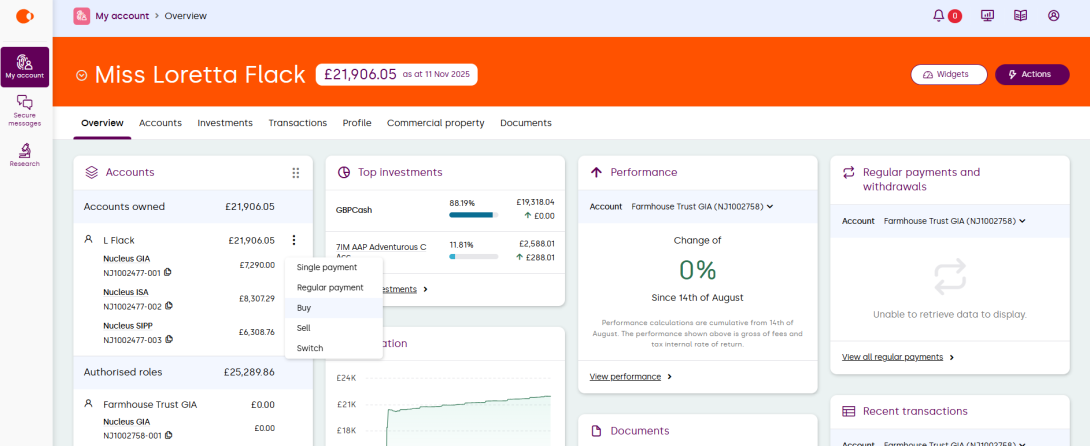
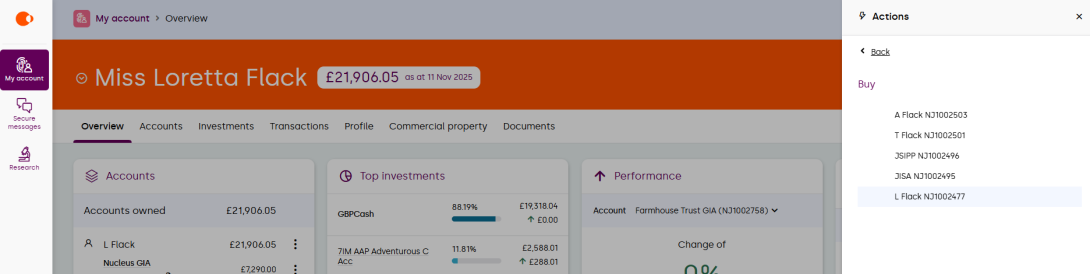
1. To place a buy, you can either select the vertical ellipsis (three dots) to the right of the product within the ‘Accounts’ widget, then select ‘Buy’.
2. Or select the ‘Actions’ button on the right-hand side, then select ‘Trading’ and ‘Buy’ from the drop down menu.
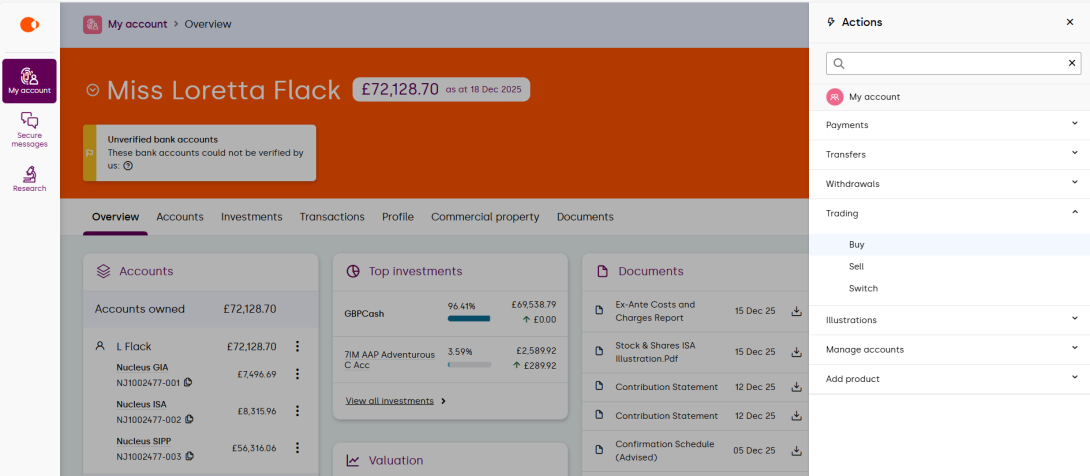
3. By selecting ‘Actions’ you will also need to choose the account required.
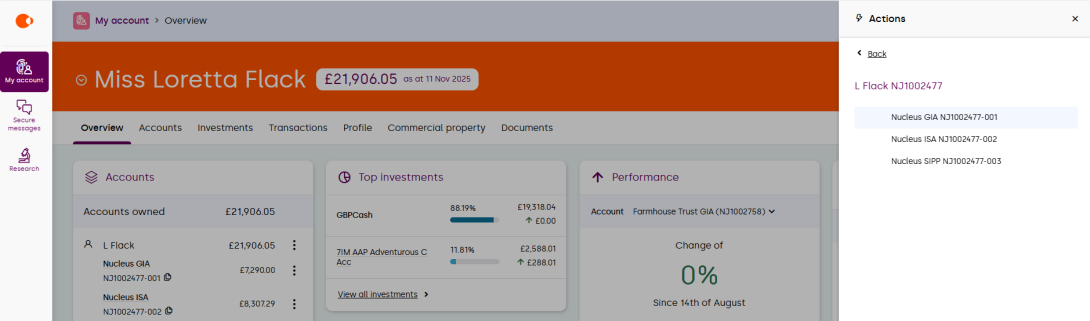
4. And then select the product you’d like to make a buy transaction on.
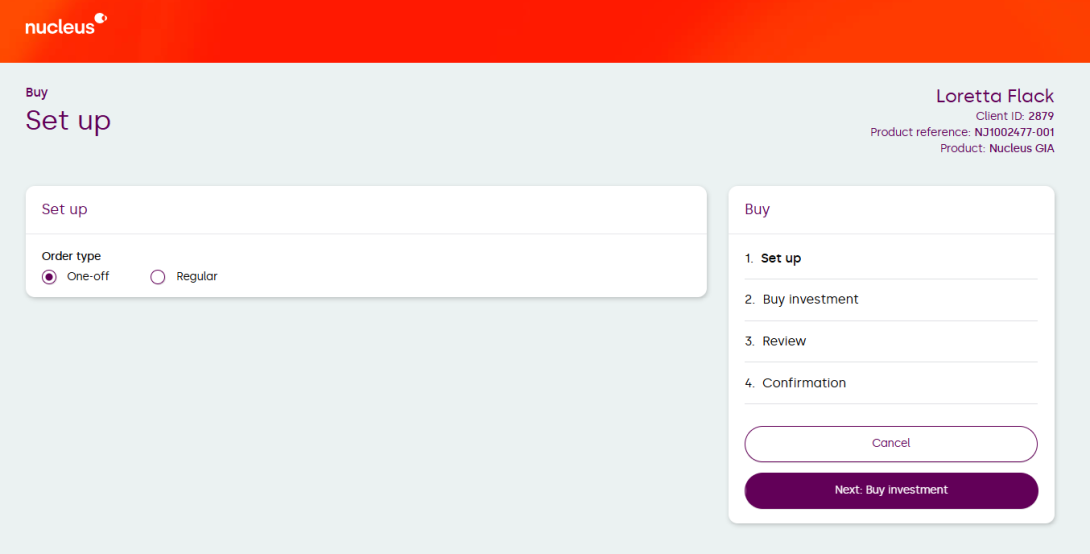
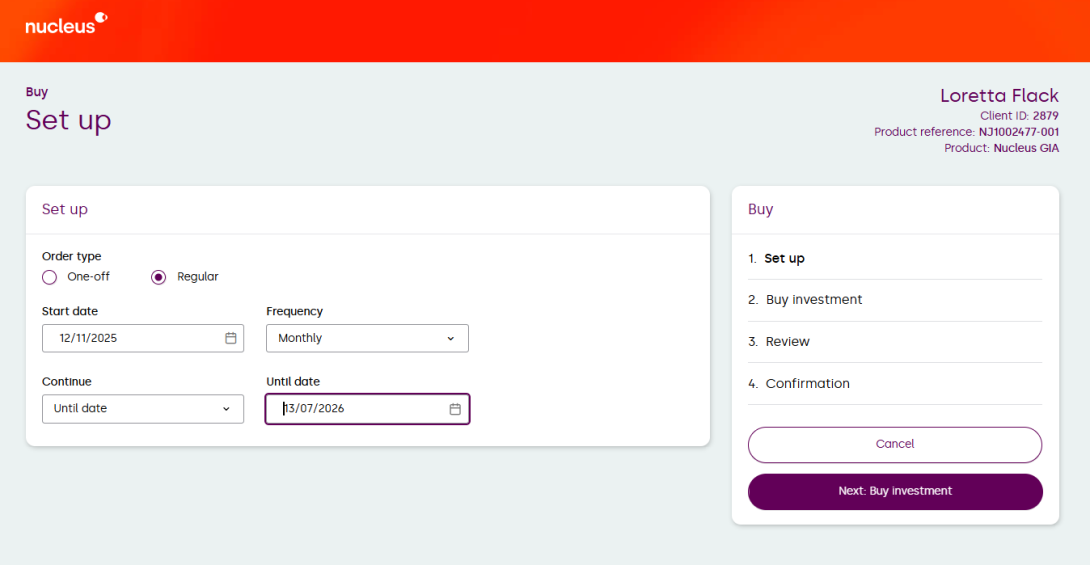
5. Both routes will bring you to the ‘Set up’ page.
Select if the buy is a one-off, or regular buy.
If the buy is a one-off, select the option and continue by selecting ‘Next: Buy investment’.
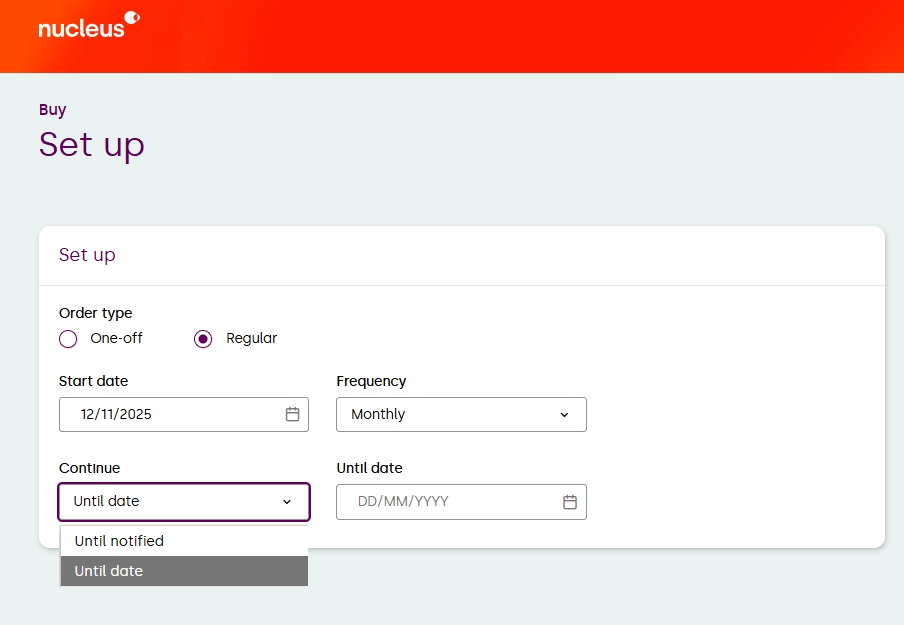
6. If you selected ‘Regular’, confirm the start date, frequency and the end date. You can choose ‘until notified’.
Or ‘Until date’. You can then select your chosen date.
7. Once complete, select ‘Next: Buy investment’.
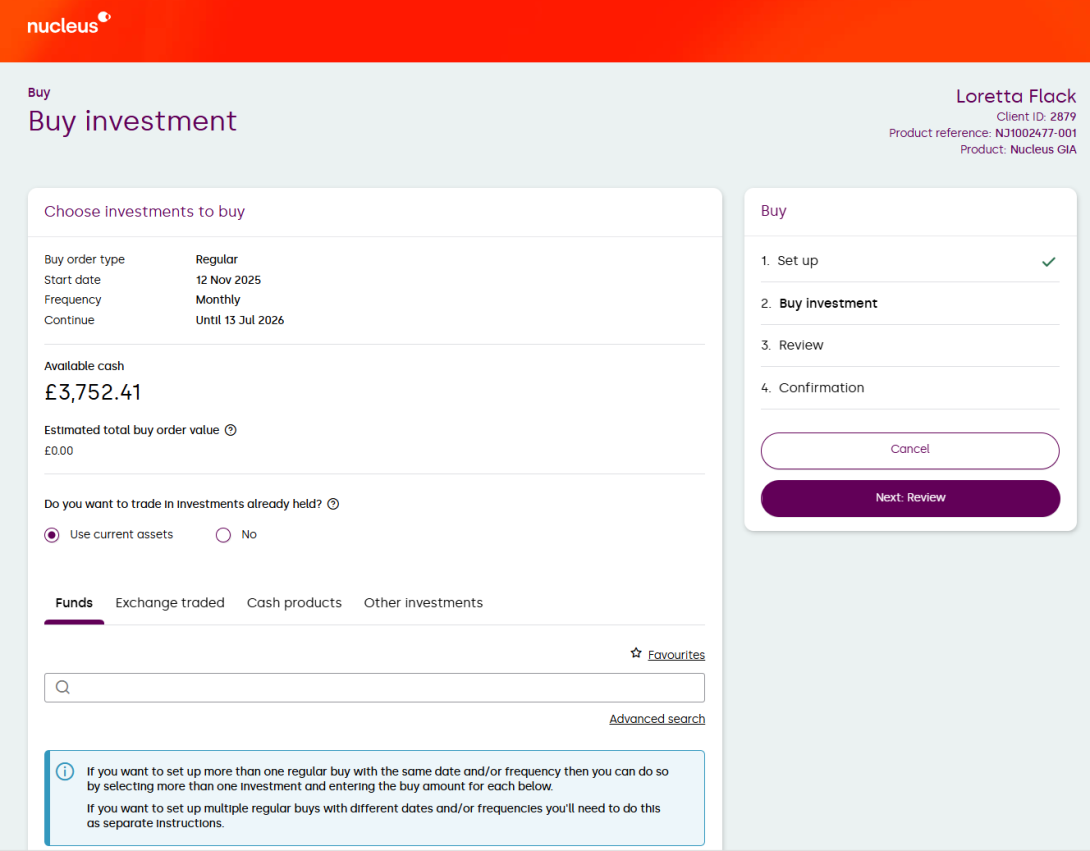
8. Ensure there is enough available cash.
Then confirm if you want to trade in investments already held by selecting ‘Use current assets’ or ‘No’.
If required, click on the question mark for further information.
Once complete, select ‘Next: Buy investment’.
9. If you selected ‘Use current assets’, add the amount in the ‘Allocation’ box below and then select ‘Next: Review’.
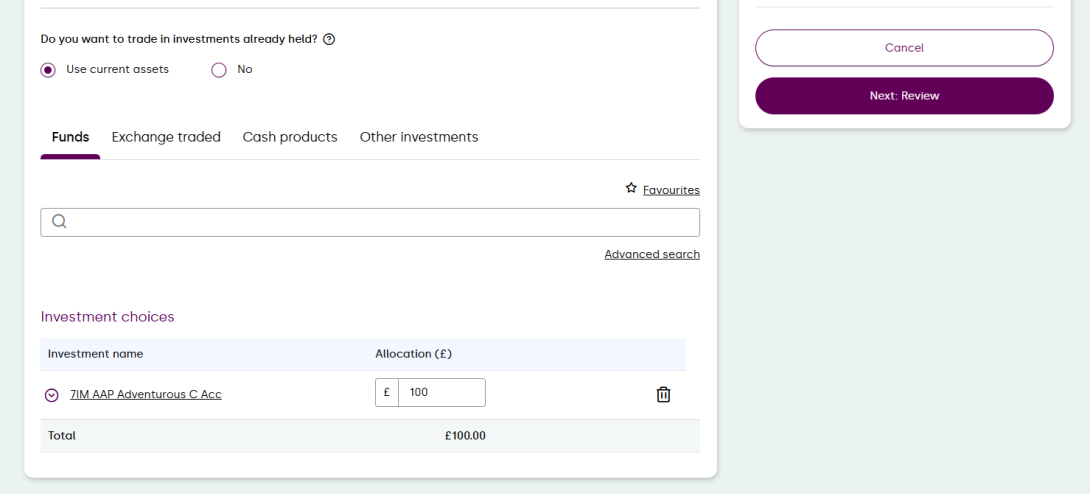
10. If you selected ‘Use current assets’, add the amount in the ‘Allocation’ box below and then select ‘Next: Review’.
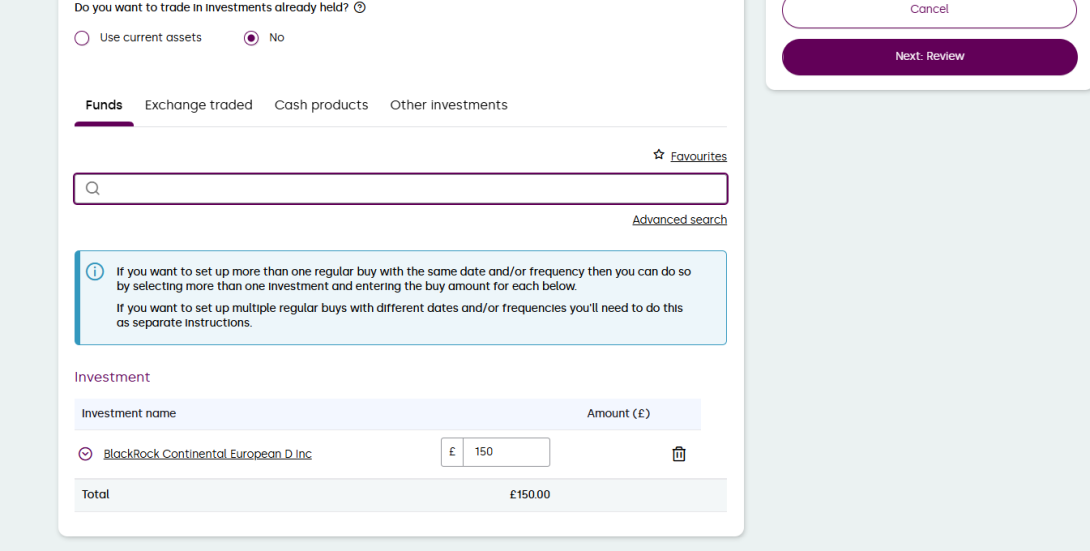
11. To choose new investments, select ‘No’ and then add the investment name into the search bar and select it from the drop down list.
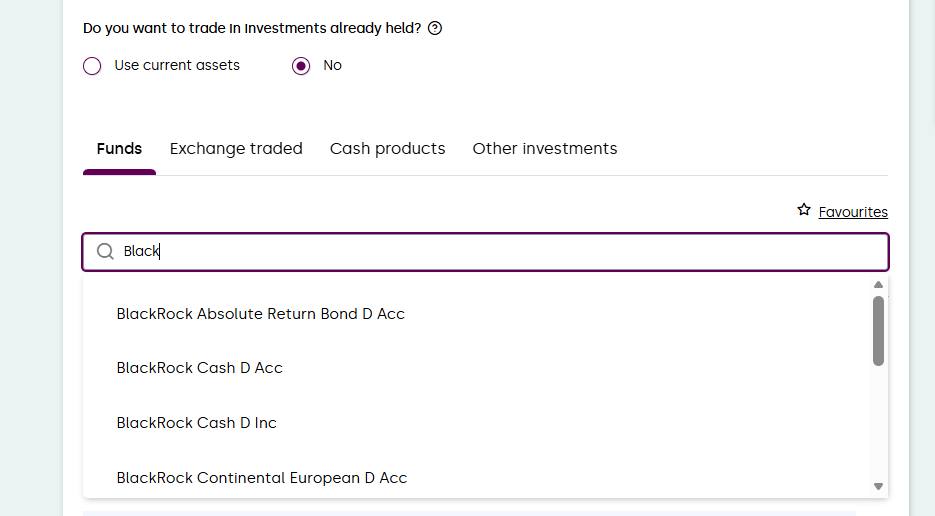
12. The name will populate in the investment section. Then add the amount you wish to buy.
Once complete, select ‘Next: Review’ to move onto the Review section.
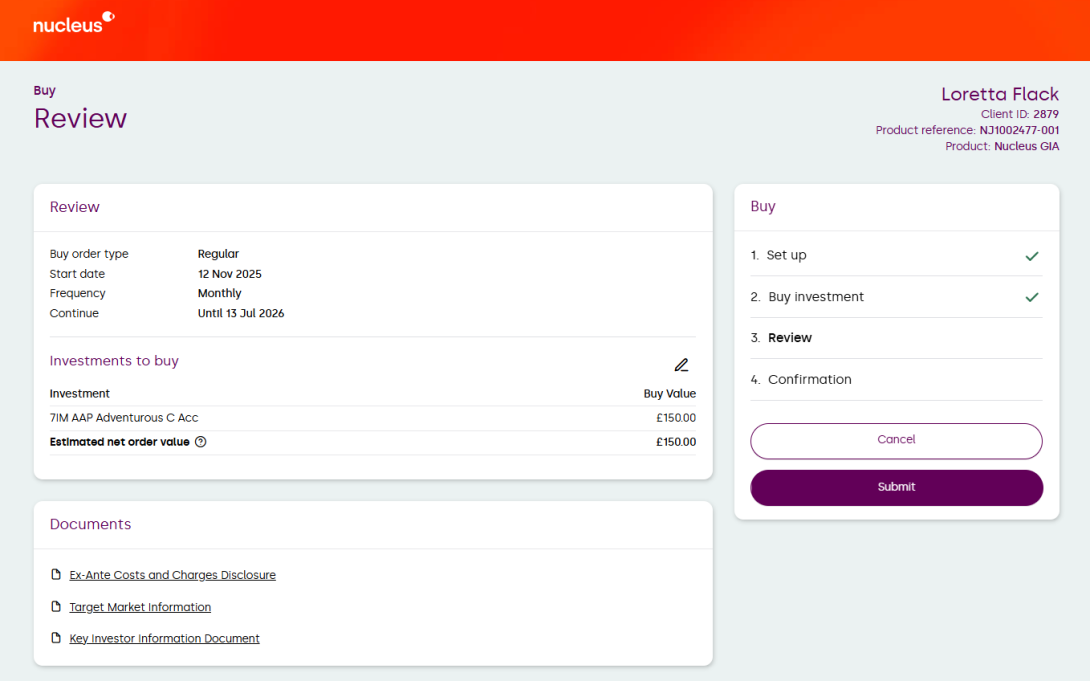
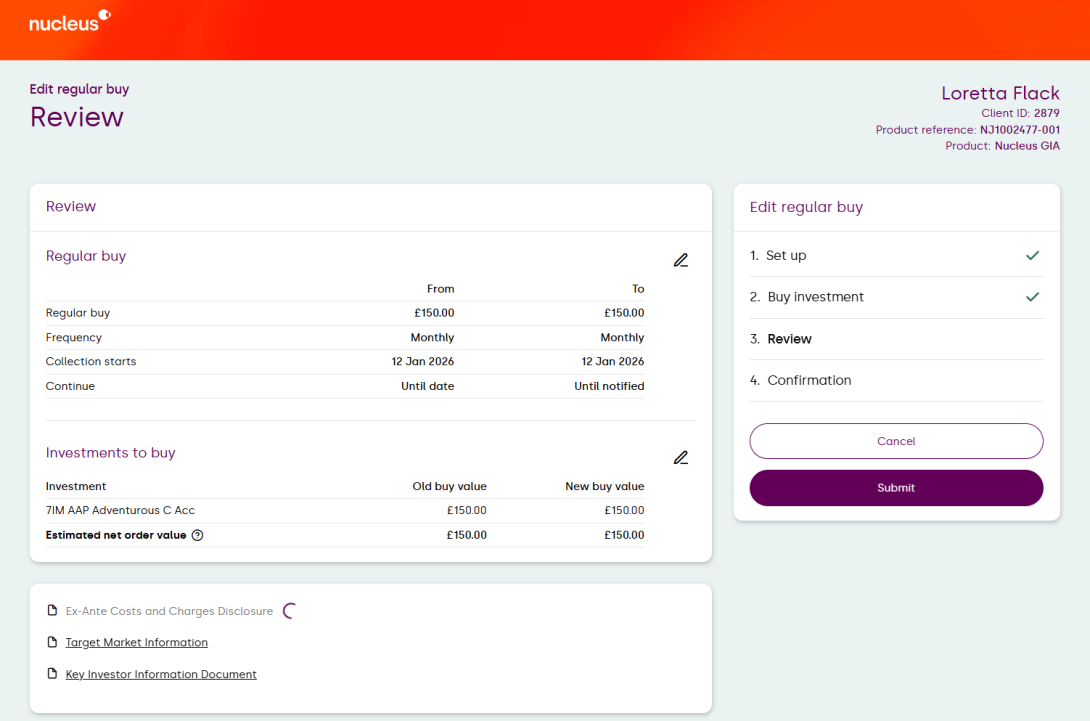
13. Review the details. Use the pencil icon to make amendments.
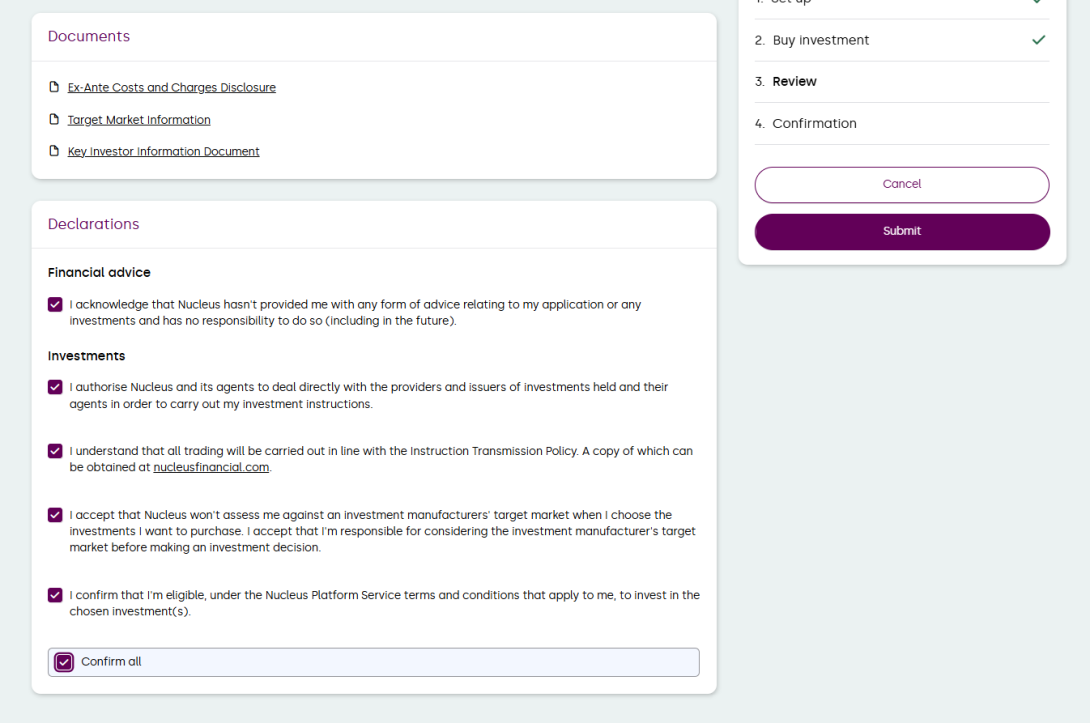
14. Download and print supporting documents if required.
Read through all declarations. You can tick ‘Confirm all’ to select all the boxes.
Once complete, select ‘Submit’ to proceed with the buy.
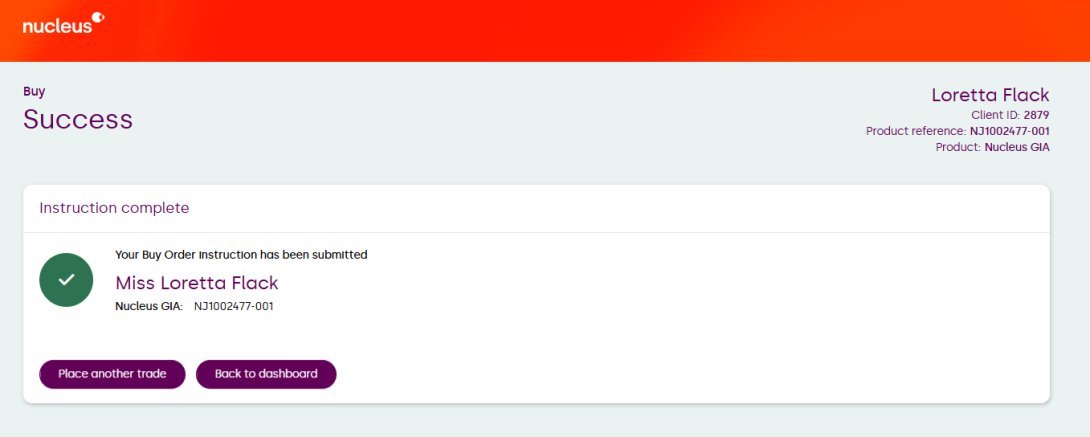
15. A confirmation page will advise the buy has been successfully completed.
How to edit or cancel a buy
1. Go to the ‘Accounts’ widget on your homepage.
Select the product link of which you would like to edit or cancel a buy.
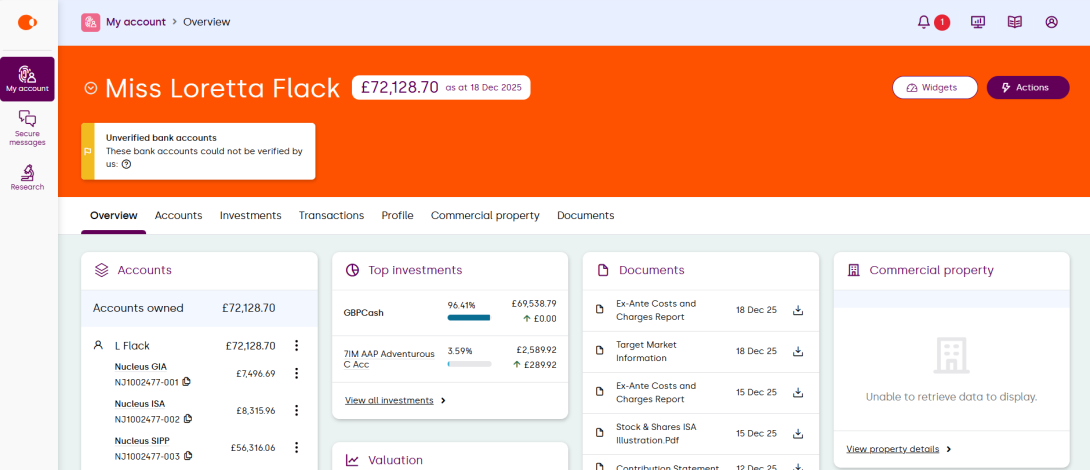
2. Select ‘Regular orders’ from the tabs.
Select the vertical ellipsis (three dots) to the right of the regular buy you wish to edit or cancel.
Choose ‘Edit’ or ‘Cancel’.
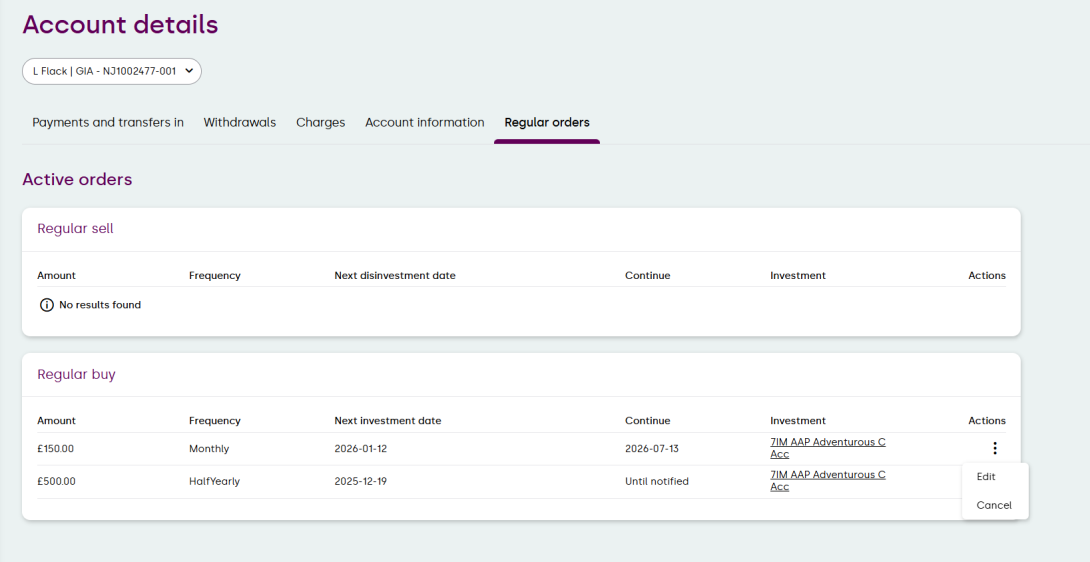
Edit a regular buy
1. Make any required changes to the details.
Then select ‘Next: Buy investment.
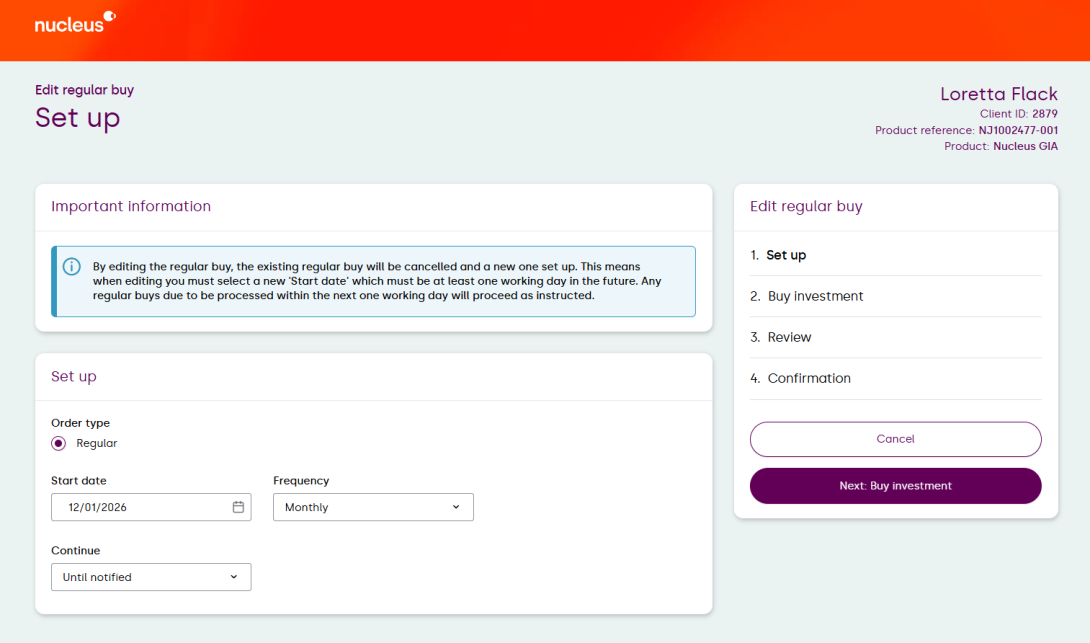
2. Choose if you want to trade in your current investments or not.
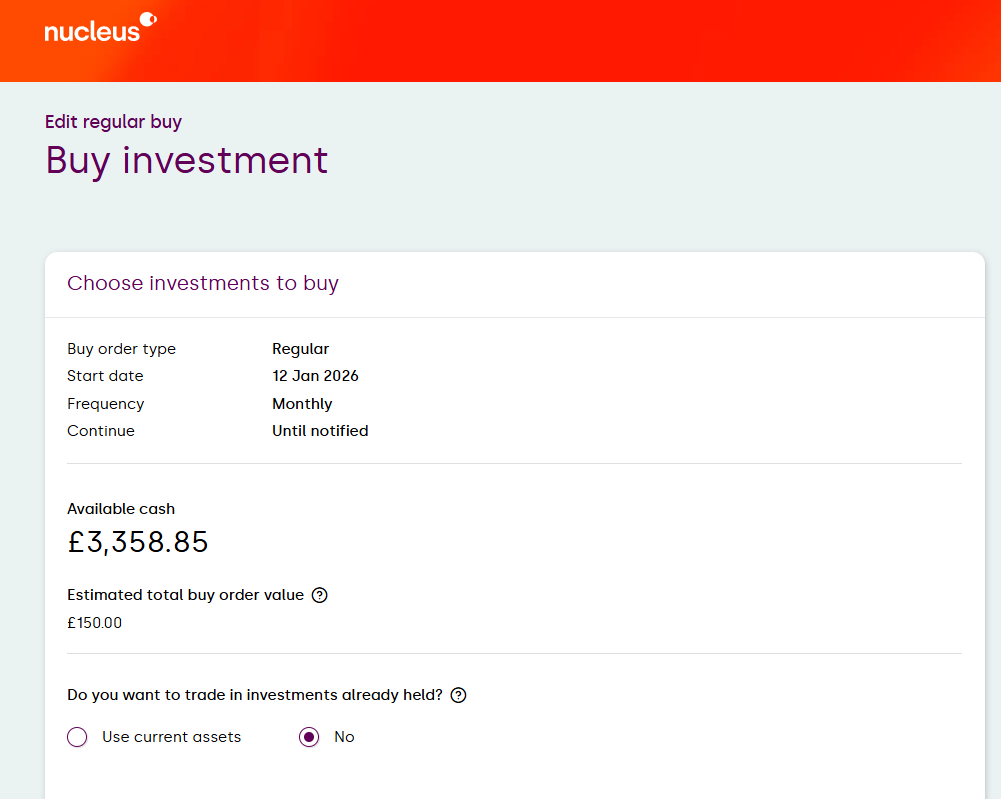
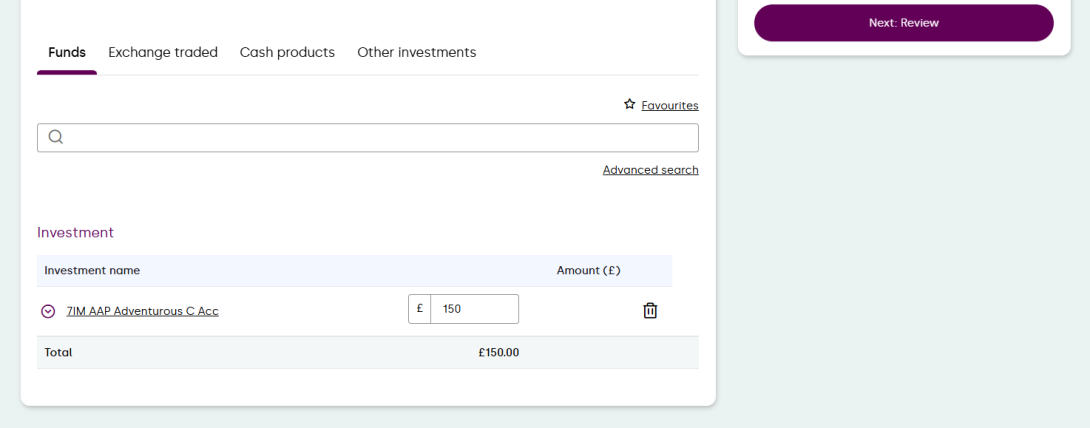
3. Search for the new funds you wish to invest in using the search bar.
Once you’re happy, select ‘Next: Review’.
4. Review all details, making any amendments using the pencil icon.
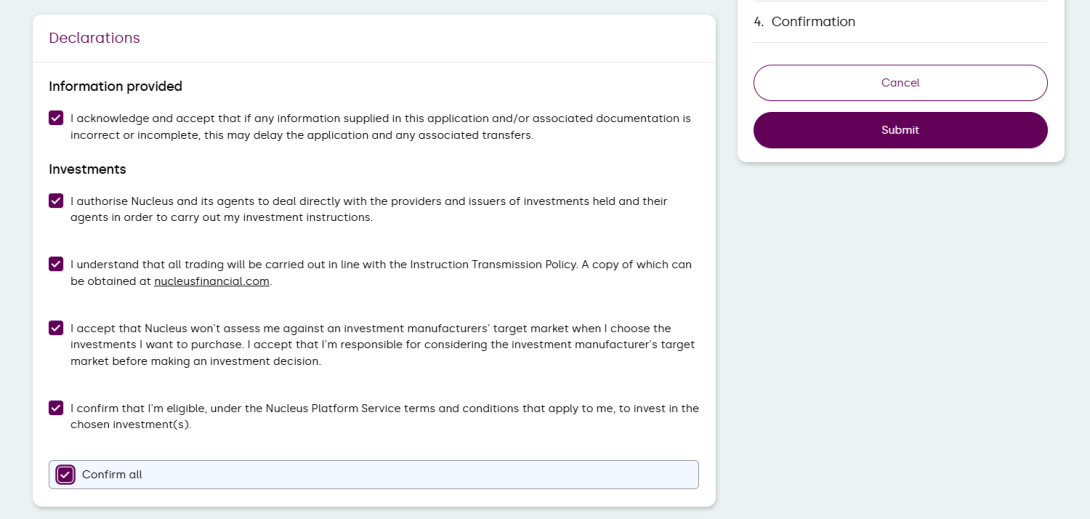
5. Download any supporting documents.
Read through the declarations and confirm acceptance.
Then select ‘Submit’.
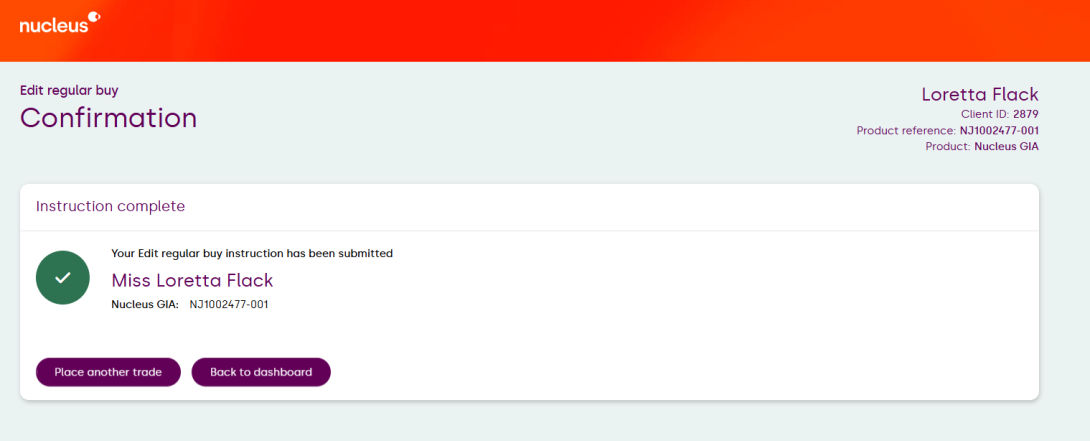
6. Your regular buy has now been confirmed.
How to cancel a regular buy
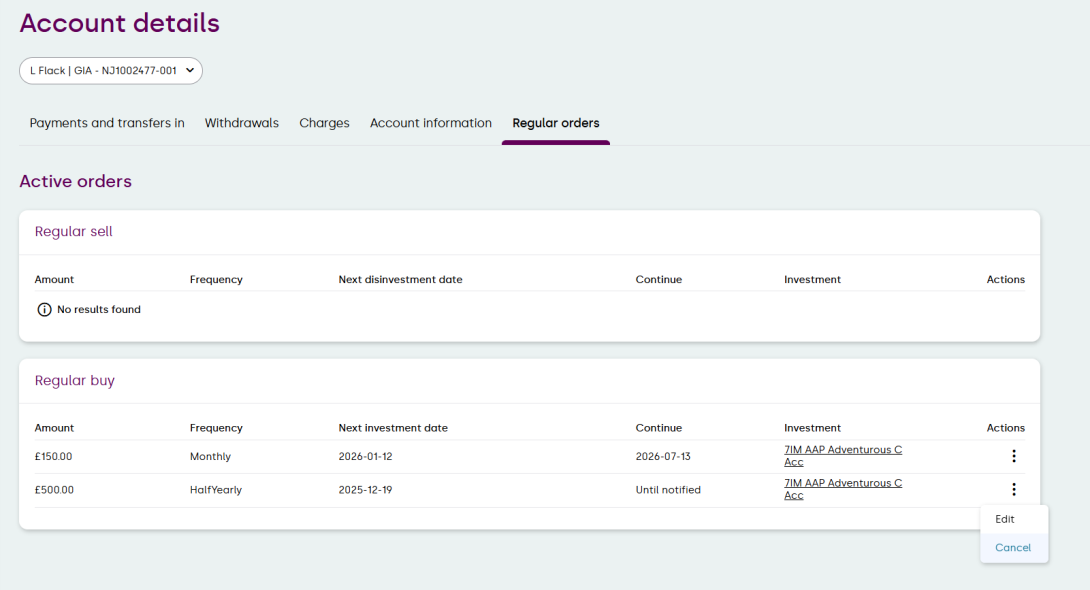
1. Within the ‘accounts’ widget. Select the product you wish to cancel the regular buy.
In the account details page, select the ‘Regular orders’ tab.
Next to the order you wish to cancel, select the vertical ellipsis and select ‘cancel’.
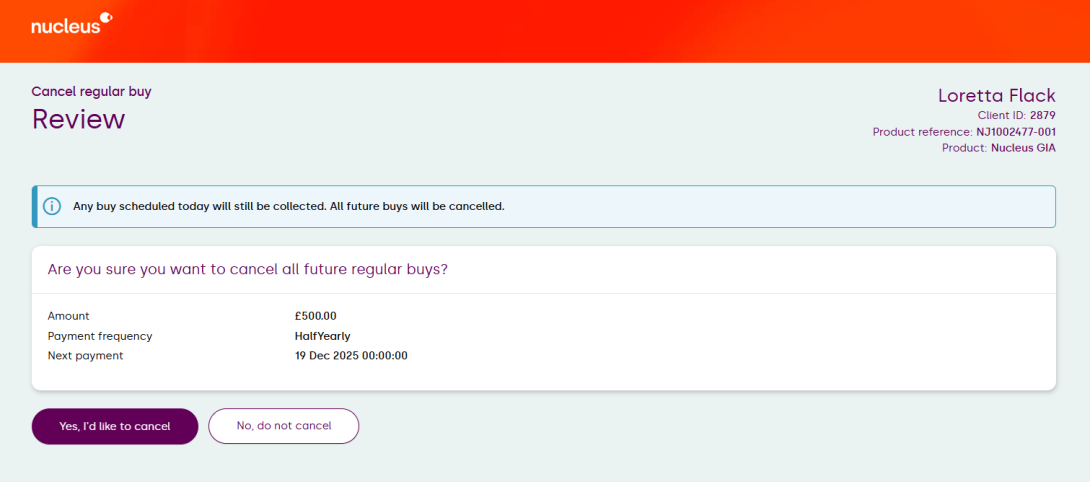
2. You have the option to select to cancel or not.
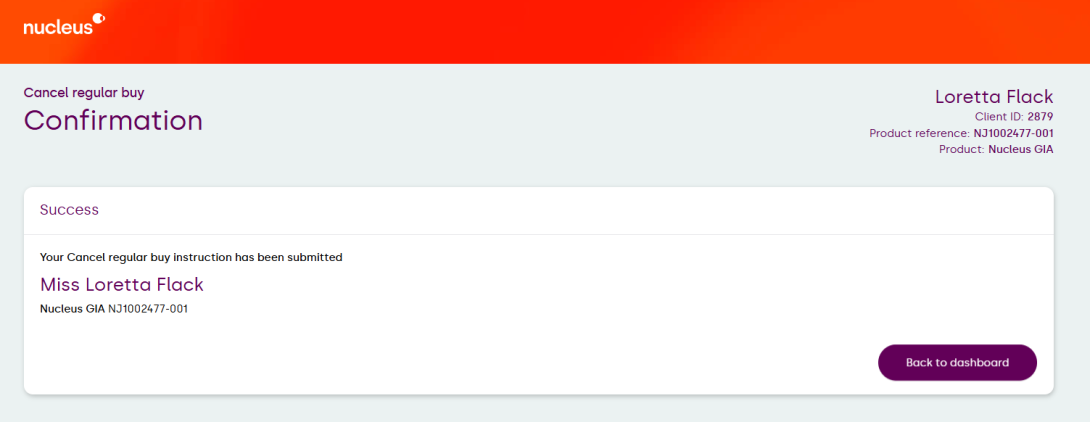
3. A confirmation screen will confirm that your regular buy has been cancelled.
How to place a sell
1. To place a sell you can either select the vertical ellipsis (three dots) to the right of the product within the ‘Accounts’ widget, then select ‘Sell’.

2. Or select the ‘Actions’ button on the right-hand side, then select ‘Trading’ and ‘Sell’ from the drop-down menu.

3. By selecting ‘Actions’ you will also need to choose the account required.

4. Then select the product you’d like to make a sell transaction on.

5. Both routes will bring you to the ‘Set up’ page.
If the sell is a one-off, select the option and continue by selecting ‘Continue’.

6. Confirm percentages, pounds or units to sell, add the amount to the allocation box.
Then select continue.

7. If you selected ‘Regular’, confirm the start date, frequency and the end date. You can choose ‘until notified’.

8. Or ‘Until date’. You can then select your chosen date.
Once complete, select ‘Continue’.

9. Confirm percentages or pounds, add the order amount.
Then select ‘continue’.

10. Review all details. Make any amendments using the pencil icon.

11. Read and tick to confirm the declarations.


How to action a switch
1. To action a fund switch, you can select the vertical ellipsis (three dots) next to the product in the ‘Accounts’ widget.

2. Or, select ‘Actions’ on the right-hand side.
Then select ‘Trading’ and Switch’.

3. Choose the account required.

4. Then select the product.

5. Read the information and decide if you wish to continue.

6. Choose percentages or pounds, and add the amount you want to sell under ‘Allocation’, then select ‘Continue’.

7. Choose if you want to trade in current assets or not.
If you’ve selected no, search for new funds in the search bar.
Add the amount you wish to sell under ‘Allocation’. The total must add up to 100%.
When you’re happy, select ‘Continue’.

8. If there are no regular payments showing to redirect, select ‘Continue’.
If you have any regular payments in for the product, you can choose to redirect them during the switch process.

9. Review all details, making any amendments using the pencil icon.
Download and print your supporting document if required.

10. Review the declarations carefully. To confirm acceptance, select each checkbox, or choose ‘Confirm all’ to select all options at once.
Select ‘Submit’ to proceed with the switch.

11. A confirmation message will appear to indicate that your switch has been submitted.

How to perform a Bed and ISA
1. To perform a Bed and ISA transaction, select the vertical ellipsis (three dots) to the right of your product, and select ‘Bed and ISA’.

2. From the drop-down list, choose the investment account funds will come from.
Choose if you would like to make the transaction ‘Immediately’ or ‘Start of the next tax year’.
Then confirm the amount you would like to move from your chosen product to your ISA.

3. Confirm if you want to withdraw assets ‘Proportionally across all investments’ or ‘from specified’ within your GIA account.

4. Select ‘Use current assets’ or ‘No’.
If you select ‘Use current assets’, add the amount below in cash and/or current assets and then select ‘Continue’.
If you select ‘No’, search for the Investment name you wish to buy in the search bar.
Then add percentages next to the Investment name, and cash if you choose. The total must add up to 100%.
Then select ‘Continue’.

5. Review all details, making any amendments using the pencil icon.

6. Download and print your supporting documents if required.
Review the declarations carefully. To confirm acceptance, select each checkbox, or choose ‘Confirm all’ to select all options at once.

7. A confirmation message will appear to indicate that your Bed and ISA transaction has been submitted.

Withdrawals
Find out how to request and edit income payments from your SIPP.
Find out how to make a single or regular withdrawal. (Note, these guides apply to withdrawals from an ISA or GIA).


Not found the answer you're looking for?
Check out our FAQs page for all questions related to the new Nucleus Platform.